资讯
- 资讯
- 安检商家



IWILDT 4335便携式安检机英文版使用说明
2018-02-09 16:38:11 来源:
[摘要] Chapter 1 :Installation and configuration Section 1 : Hardware and operating system configuration Operating system:Window7 or higher system RAM:1G CPU:intel i
Section 5: Stitching operation
Click the icon  The Stitching dialog box appears,
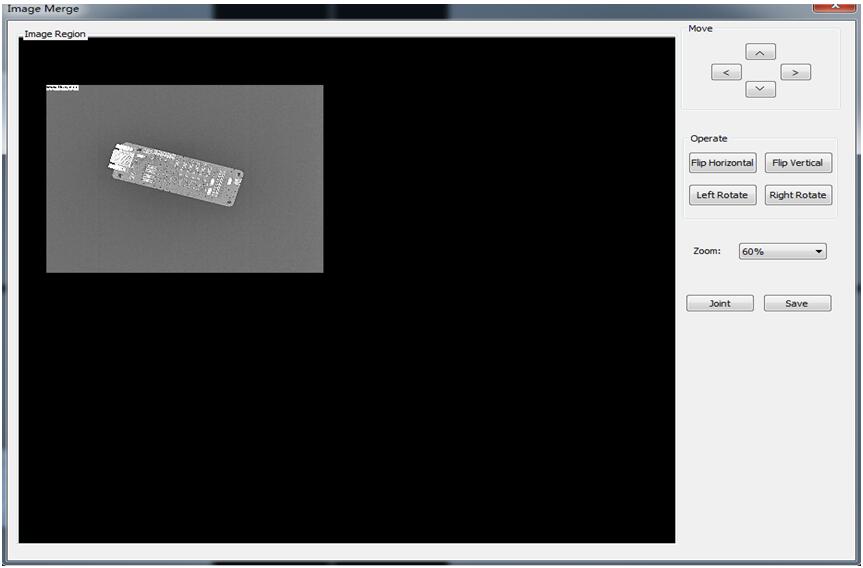
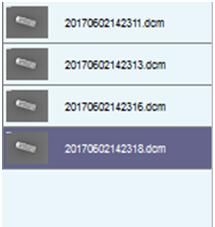
1:Add image,Click image list . The picture is deleted from the box when the image in the list is clicked for the second time. The default image added to the box will be in the upper left corner.
2:Move image, Hold down the left mouse button to drag, Drag to the right position, Click the jion button to perform the splicing.
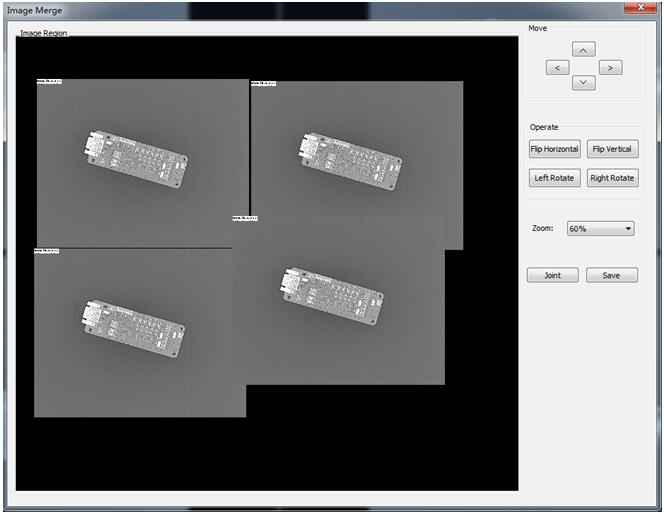
3: Click the save button to save the stitched image, which saves the image according to the zoom rate.
Section 6: Touch the tablet operation
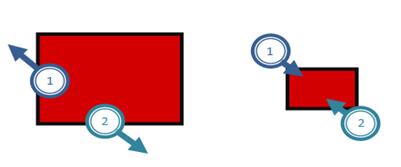
Move the image horizontally

Rotate
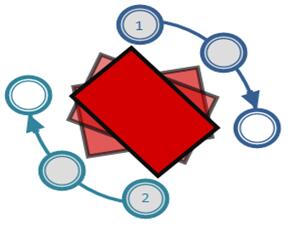
Zoom
Chapter 3 : System Configuration
User configuration
Click the System Configuration navigation button to enter the system configuration. System configuration You can configure user information, add, delete, update users.
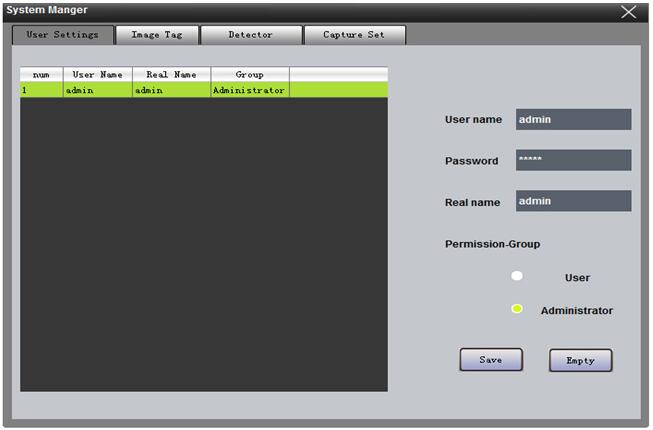
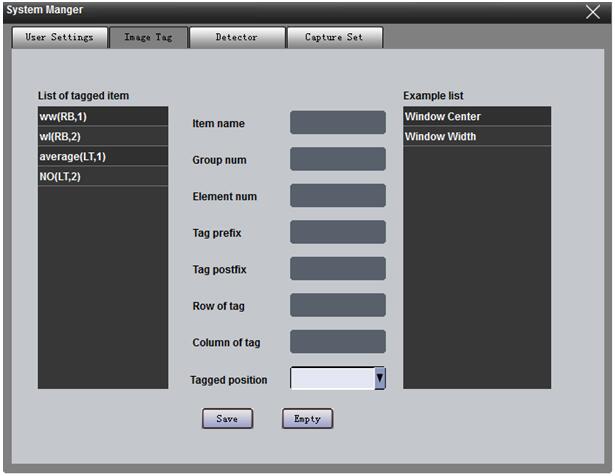
Image marker configuration
Configure image tag information, add, delete, update tags,
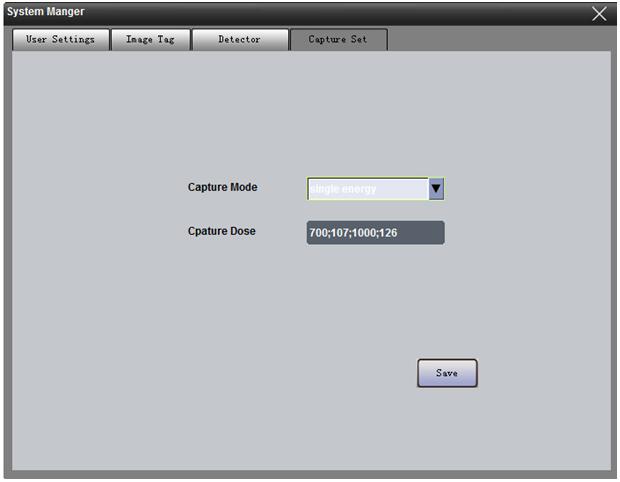
Acquisition configuration
You can configure the acquisition of single and dual energy mode. Requires hardware support.
Detector configuration
You can add, delete, and update probe information
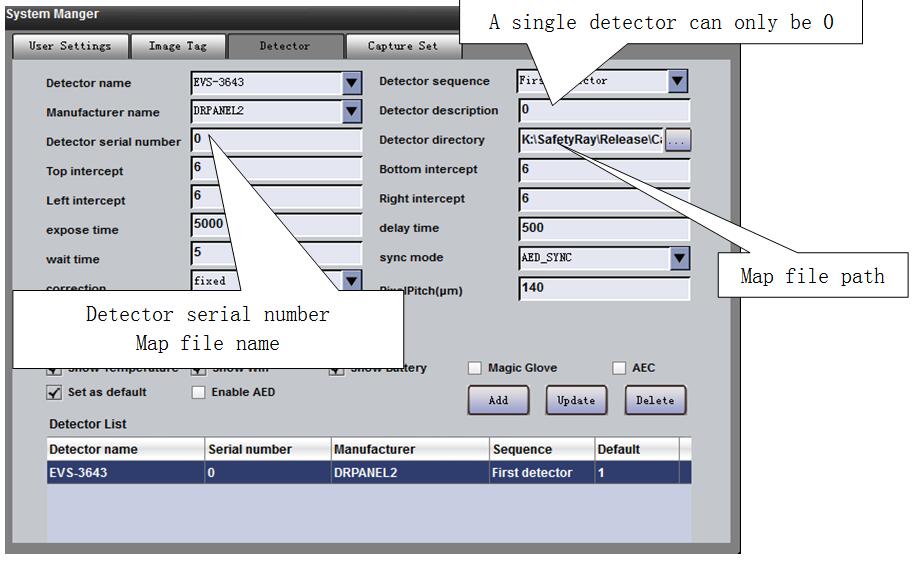
Chinese and English configuration
Open the installation directory (config/config.ini) file and modify the language tab. 0 Chinese 2 English

推荐产品
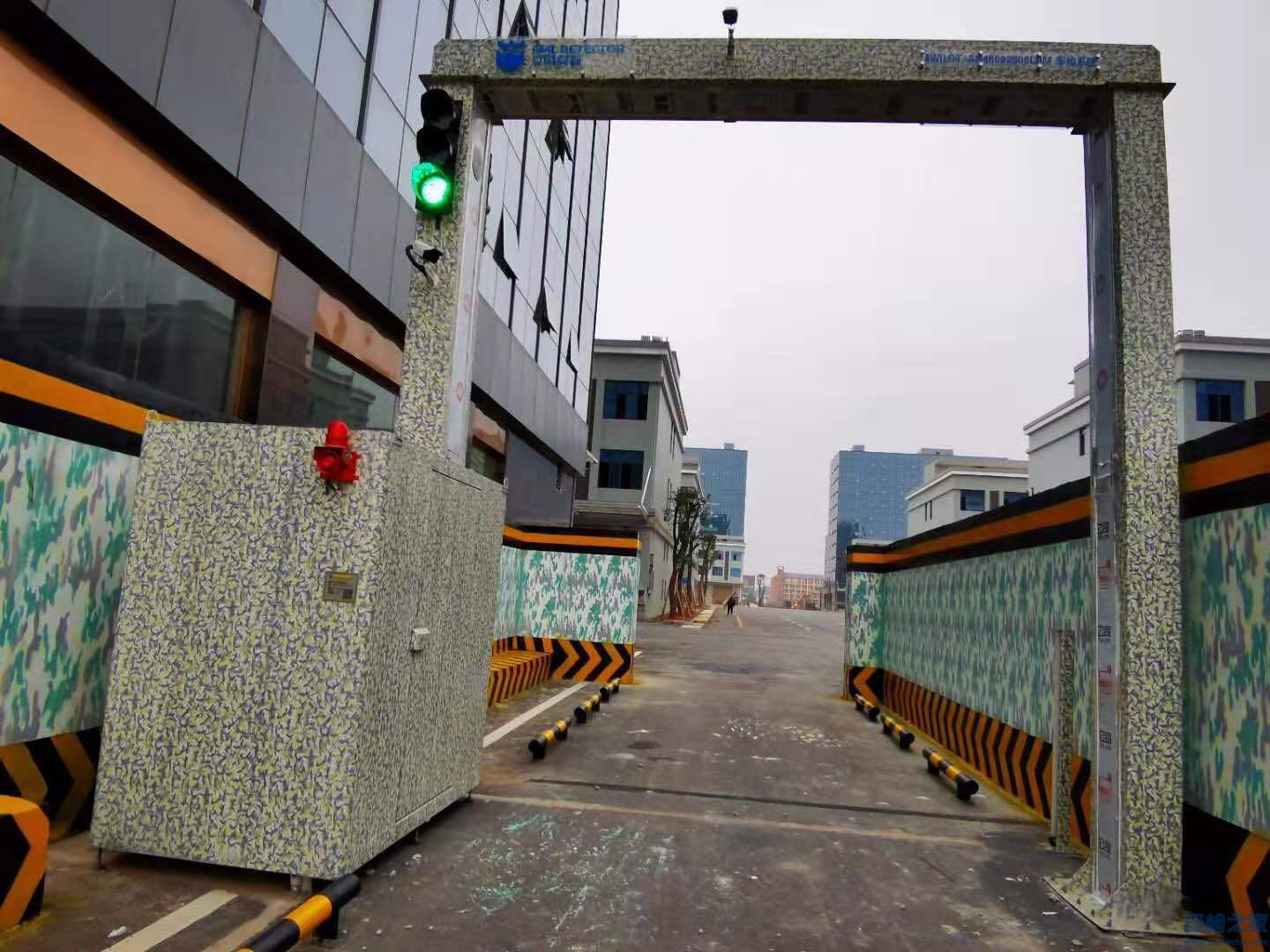 IWILDT™ AN-48002800L物流园大型货车X光安检系统
价格:¥0.00
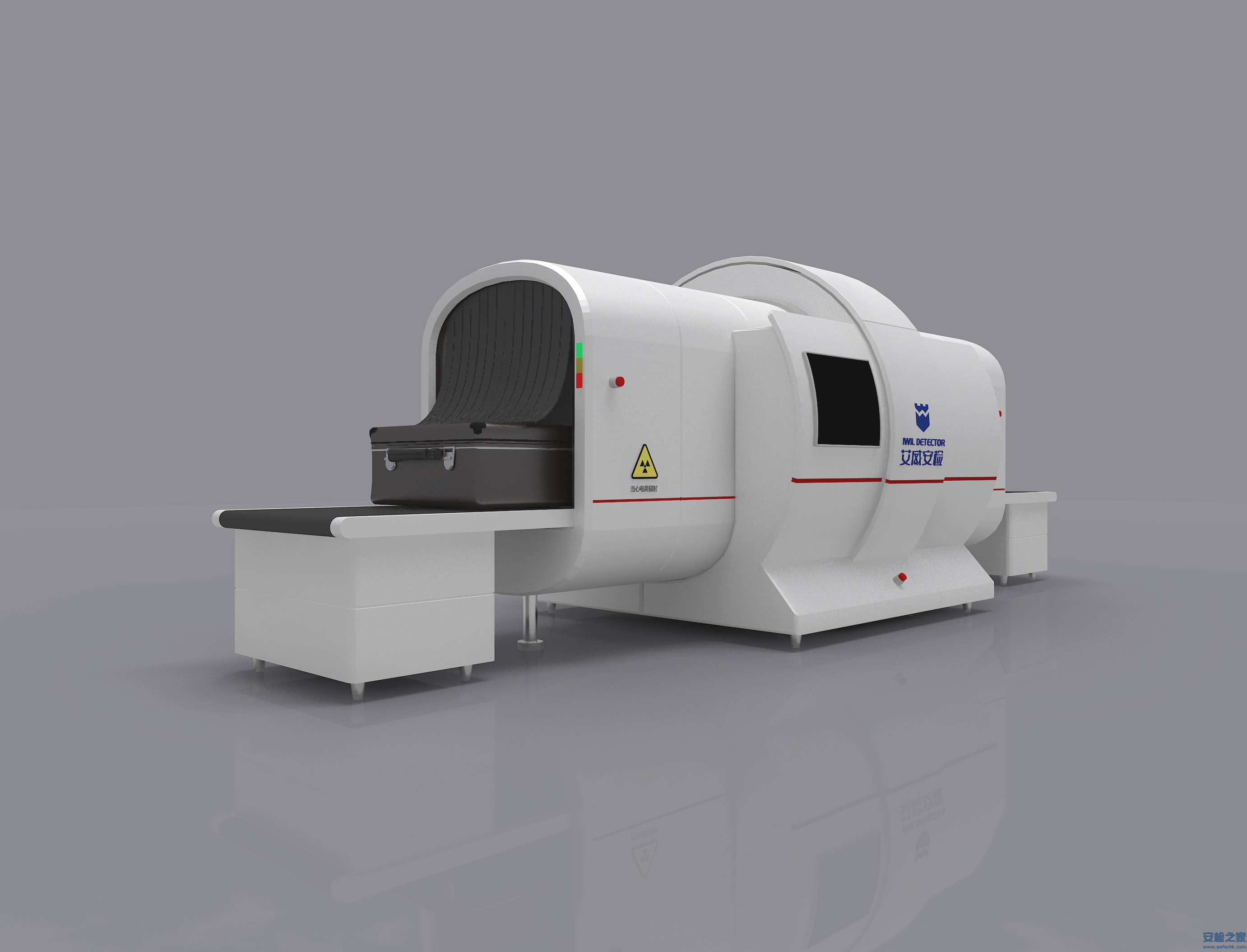 IWILDT™ AN-9000CTL静态立体断层扫描X光安检机
价格:¥0.00



CopyRight © 2005-2019安检之家安保网 Inc. All Rights Reserved